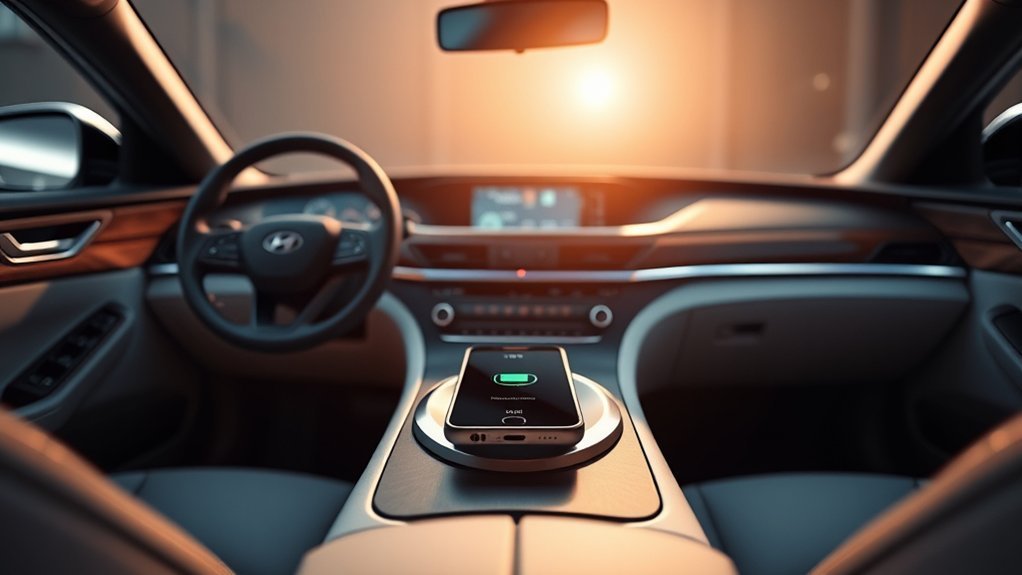
Hyundai Sonata wireless charging is simple once you confirm that your car has the factory charging pad and your phone supports Qi wireless charging. The exact controls and indicator colors can vary by model year and market, so your Sonata’s owner’s manual remains the final authority. On the 2025 Sonata DN8 system, the phone goes in the center of the pad, the vehicle must be on, and the charger can be enabled through the infotainment settings.
Quick Answer
To use Hyundai Sonata wireless charging, turn the vehicle on, make sure the charging feature is enabled, remove keys, coins, cards, and other objects from the pad, then place a Qi-compatible phone face up in the center. On the cited 2025 Sonata system, an orange indicator means charging and green indicates completion.
Key Takeaways
- The factory Sonata charger is intended for Qi-compatible smartphones when the vehicle is equipped with the feature.
- Centering the phone on the pad is one of the most important steps for reliable charging.
- Remove the smart key, coins, credit cards, magnetic items, and other objects before charging.
- A thick or metallic phone case can slow charging or prevent it completely.
- Charging can pause because of excess heat, poor alignment, smart-key activity, or a charger malfunction.
- Controls and indicator colors can differ between Sonata model years and markets, so check the manual for your exact car.
At a Glance
| Time Required | About 1–3 minutes for initial setup |
| Difficulty | Easy |
| Tools Needed | None; a Qi-compatible phone is required |
| Cost | Usually $0 if your Sonata has the feature and your phone already supports Qi |
Locate Your Wireless Charging Pad in the Hyundai Sonata
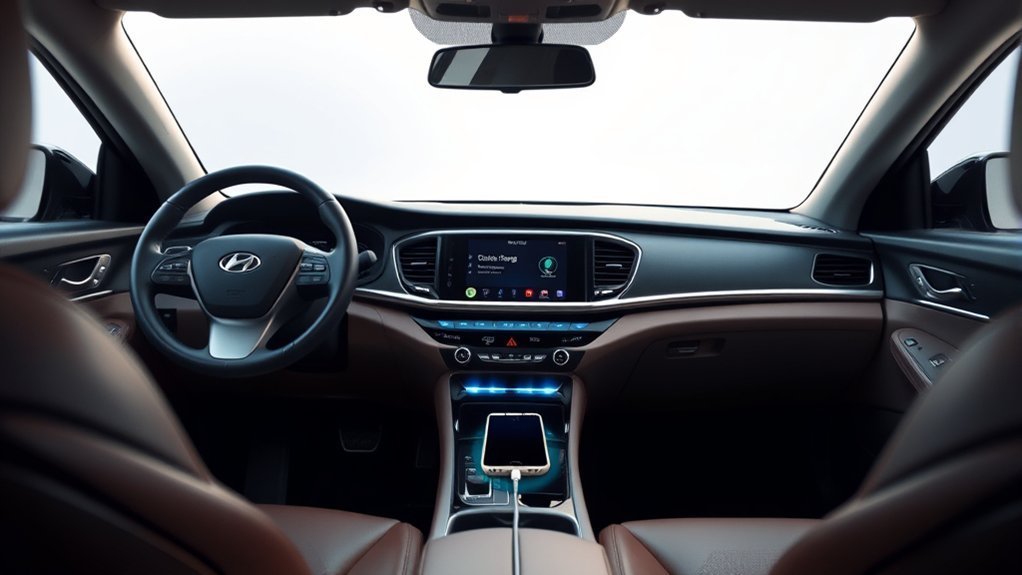
On Sonata models equipped with wireless smartphone charging, look for the dedicated phone pad in the center-console area. The exact shape and location can differ slightly by model year, but the charging surface is designed to hold one smartphone flat against the pad.
Hyundai’s 2025 Sonata guidance identifies an indicator light and charging pad as the main parts of the system. Before using it, clear the entire charging area. Do not leave a smart key, coins, cards, clips, or other loose objects underneath or beside your phone.
Warning: Never place coins or other metallic objects between your phone and the charging pad. Hyundai warns that charging can be disrupted and the metal object can become hot. Magnetic cards, credit cards, transit cards, and similar items should also be removed from the charging area.
For the 2025 Sonata DN8 system described in Hyundai’s official owner’s manual, the wireless charger is available when the doors are closed and the Engine Start/Stop button is in the ON or START position. You can review Hyundai’s instructions in the official 2025 Sonata owner’s manual.
Confirm Your Phone Is Compatible With Wireless Charging
The most important requirement is Qi wireless charging compatibility. Hyundai specifies Qi-enabled smartphones for the factory wireless charging system rather than a fixed list of individual phone models.
For iPhone owners, Apple states that iPhone 8 and later have integrated wireless charging and work with Qi-certified chargers. You can confirm this in Apple’s wireless charging guide. Many Samsung Galaxy, Google Pixel, and other phones also support Qi, but compatibility varies by exact model.
If your phone does not include built-in wireless charging, an aftermarket receiver accessory may exist for that phone. However, compatibility and fit depend on the accessory, so do not assume that an accessory made for one phone or charger will work reliably in every Sonata.
Note: Phone size alone is not a reliable compatibility test. A large phone can work if it fits the pad and its charging coil aligns correctly. Conversely, a smaller phone can fail to charge if its case, camera bump, magnets, accessories, or internal coil position prevent good contact.
Set Up Wireless Charging in Your Hyundai Sonata
Use this sequence for a current Sonata equipped with the factory wireless charger:
- Start the vehicle. For the cited 2025 Sonata system, the Start/Stop button must be in ON or START and the doors should be closed.
- Check the wireless charging setting. On the 2025 system, open Setup > Vehicle > Convenience > Wireless Charging System for Mobile Devices in the infotainment system and make sure it is enabled.
- Clear the charging pad. Remove the smart key, coins, cards, magnetic items, cables, and other objects.
- Place the phone face up. Put a Qi-compatible phone flat on the pad and center it as accurately as possible.
- Check the charging indication. On the cited 2025 Sonata system, the indicator is orange while charging and turns green when charging is complete.
- Confirm on the phone. Look for your phone’s charging symbol to make sure power is actually being received.
Pro Tip: If charging starts and stops as you drive, first reposition the phone in the exact center of the pad and try again without the case. Small shifts in coil alignment can make a noticeable difference.
Understand the Indicator Light
Indicator behavior is model-year dependent, so do not rely on a color chart from a different Sonata. For the cited 2025 DN8 owner’s manual:
| Indicator | Meaning |
|---|---|
| Orange | Phone is charging. |
| Green | Charging is complete, although Hyundai notes that the indication may not change as expected with every phone. |
| Orange blinking for about 10 seconds | The wireless charging system has detected a malfunction. Remove the phone, wait briefly, and try again. |
Older Sonata model years or vehicles sold in another market may use different menus or indicator behavior. If your car does not match the description above, use the wireless-charging section of the owner’s manual for your exact model year.
Fix Common Hyundai Sonata Wireless Charging Problems
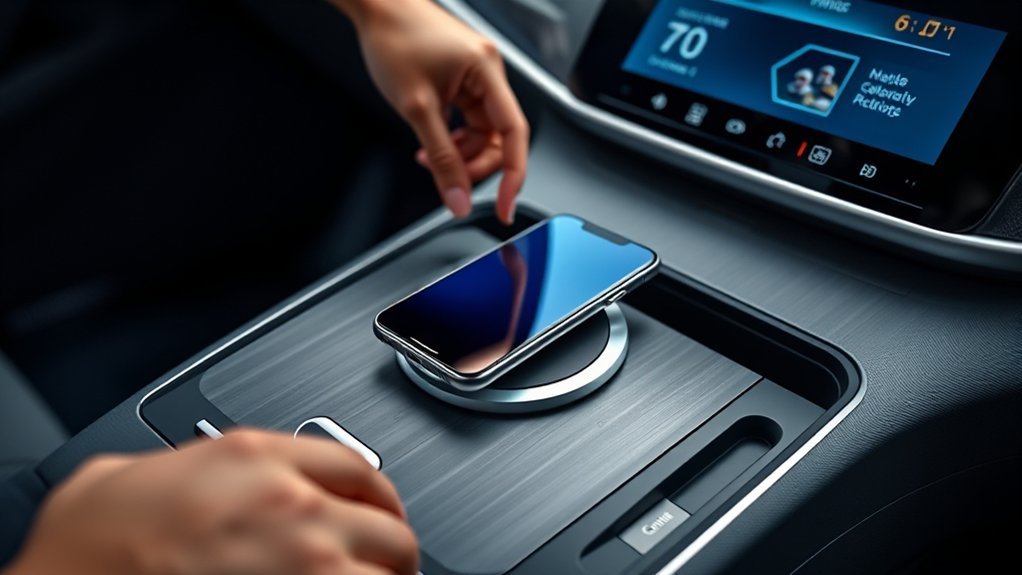
If your Sonata’s wireless charger does not work, troubleshoot it in this order rather than immediately assuming that the charging pad has failed.
1. Confirm the Phone Supports Qi
Check the manufacturer’s specifications for your exact phone model. The Wireless Power Consortium explains that Qi is the wireless charging standard used across compatible mobile devices. Having Bluetooth, NFC, Apple CarPlay, or Android Auto does not automatically mean a phone supports Qi charging.
2. Recenter the Phone
Move the phone slightly and place it flat in the center of the charging area. Hyundai specifically notes that off-center placement can reduce charging performance and increase heat.
3. Remove the Phone Case and Attachments
Try charging with the case removed, especially if it is thick or contains metal, magnets, a card holder, ring grip, kickstand, or another attachment. Apple and Hyundai both warn that cases or objects between the phone and charger can interfere with wireless charging.
4. Remove Everything Else From the Pad
Take away coins, keys, cards, the vehicle’s smart key, and other items. Hyundai states that the smart key can interrupt charging, while metallic objects can interfere and become hot.
5. Check the Vehicle and Charging Setting
Make sure the vehicle is in the required ON/START state and that the wireless charging option has not been switched off in the vehicle settings. The exact menu path can differ after software updates or between model years.
6. Let the Phone and Charger Cool Down
Wireless charging creates heat. Hyundai says charging may temporarily stop when the wireless charging system becomes too hot and can resume after the temperature falls. A phone may also limit or pause charging to protect itself from excess heat.
Using demanding phone functions such as navigation, wireless Android Auto, or Apple CarPlay can increase phone temperature. If your phone is noticeably hot and charging is slow or repeatedly stops, remove it from the pad and allow it to cool.
7. Watch for a Malfunction Indicator
On the cited 2025 Sonata system, an orange light blinking for about 10 seconds indicates a wireless charging malfunction. Remove the phone and try again. If the malfunction repeatedly returns with more than one known-compatible phone, the vehicle may need inspection.
8. Consider Smart-Key Interference
Hyundai notes that wireless charging can temporarily stop when the smart key is being used, including during certain vehicle starting, locking, or unlocking events. A short interruption at that moment does not necessarily indicate a failed charger.
9. Try a Second Known-Compatible Phone
If possible, test another Qi-compatible phone without a case. If one phone charges normally and another does not, the problem is more likely related to the phone, case, alignment, or compatibility. If no compatible phone charges after you verify the vehicle settings, ask a Hyundai dealer to inspect the system.
The fastest troubleshooting test is simple: clear the pad, remove the phone case, center a known Qi-compatible phone, and check whether the charging indicator appears.
How to Keep Your Wireless Charging Pad in Good Condition
The wireless charger needs very little routine maintenance. The most useful habits are keeping the surface clean, preventing foreign objects from collecting on the pad, and avoiding anything that prevents the phone from lying correctly against the charging area.
Regular Cleaning Routine
Wipe the charging surface with a soft, clean cloth when you notice dust, crumbs, moisture, or debris. There is no need to follow an arbitrary monthly cleaning schedule. The goal is simply to keep the surface clear enough for the phone to sit flat and make reliable contact with the charging area.
- Remove loose debris before placing your phone on the pad.
- Use a soft cloth that will not scratch the console surface.
- Do not allow liquid to remain on or around the charging area.
- Inspect the pad if charging becomes inconsistent after something has been spilled or dropped on it.
Keep Metal Objects and Extra Items Off the Pad
The pad is intended to charge a compatible phone, not to serve as storage while charging. Do not sandwich coins, cards, keys, or other objects between the pad and smartphone.
| Action | Why It Matters |
|---|---|
| Remove coins and metal objects | They can interrupt charging and may become hot. |
| Remove the smart key | Hyundai says it can interfere with the charging process. |
| Remove magnetic or payment cards | Magnetic or stored card data may be affected. |
| Keep the pad clear and dry | It helps the phone sit flat and align correctly. |
Recheck Compatibility After Changing Phones or Cases
If your old phone charged correctly but a new one does not, do not assume the car has developed a fault. Wireless charging performance can change when you replace the phone, phone case, magnetic accessories, or grip attachment.
- Confirm that the new phone supports Qi charging.
- Test it without the case.
- Center the phone carefully on the pad.
- Remove magnetic accessories and card holders.
- For a foldable phone, follow Hyundai’s model-specific placement guidance; current Hyundai manuals commonly instruct users to fold the device and place its back toward the charging surface.
Model-Year Differences You Should Know About
Hyundai Sonata wireless charging has changed over time, so instructions from one model year should not automatically be applied to another. Feature availability can also differ by trim and market.
For example, Hyundai’s current 2025 Sonata DN8 documentation uses the infotainment menu to switch the charging system on or off and describes orange as the charging indication and green as the completion indication. Other Hyundai manuals and earlier vehicles may use different menu wording or indicators.
If you cannot find the charging pad or wireless-charging setting, verify that your particular Sonata was actually equipped with the feature. A USB port in the console does not by itself mean that the vehicle includes wireless charging.
Explore Additional Charging Options in Your Hyundai Sonata
If wireless charging is unavailable, too slow for your needs, or your phone becomes too warm, use the Sonata’s available USB charging connection instead. Port type and output vary by model year and trim, so check the markings next to the port and your owner’s manual before choosing a cable.
Wired charging is also useful when a phone’s case or physical design prevents reliable alignment with the vehicle’s wireless pad.
| Charging Option | Best Use | What to Check |
|---|---|---|
| Wireless Charging | Convenient cable-free charging for a compatible phone | Qi compatibility, alignment, case thickness, heat, and model-specific indicator |
| USB Charging | A reliable alternative when wireless charging is unavailable or inconsistent | Correct cable and the USB port provided in your specific Sonata |
| Vehicle Wireless-Charging Setting | Turning the factory charging function on or off where supported | Check the Vehicle/Convenience settings or your exact owner’s manual |
Frequently Asked Questions
Can I charge multiple devices at once on the wireless pad?
The Sonata’s individual factory wireless charging pad is intended for one compatible phone at a time. If another passenger needs power, use an available USB charging connection where equipped.
Does wireless charging work with a phone case on?
Often, yes. However, Hyundai and phone manufacturers warn that a thick case or a case containing metal, magnets, cards, batteries, grips, or other attachments may slow or prevent charging. If charging is unreliable, remove the case and test the phone again.
What should I do if my phone doesn’t charge?
Confirm that your phone supports Qi, remove its case, clear everything else from the pad, center the phone, verify the vehicle is in the required ON/START state, and check that wireless charging is enabled. If the charger still fails, let the phone and pad cool and test another known-compatible phone.
Is there a limit to the phone size for charging?
There is no useful universal phone-size cutoff for every Sonata. The phone must physically fit the charging area and its receiving coil must align with the pad. Camera bumps, cases, magnets, foldable designs, and coil position can all affect charging even when the phone itself supports Qi.
Can I use the wireless charger while driving?
Yes. The factory system is designed to charge a compatible phone while the vehicle is operating. Position the phone before driving whenever possible, and do not pick up or repeatedly reposition it while the vehicle is moving. If adjustment is necessary, wait until you are safely stopped.
What does a blinking orange wireless-charging light mean?
On the cited 2025 Sonata DN8 system, an orange light blinking for about 10 seconds indicates a wireless charging system malfunction. Remove the phone, retry after a short pause, and make sure the pad is clear. If the warning repeatedly returns with compatible phones, have the system inspected.
Conclusion
Hyundai Sonata wireless charging works best when three basics are correct: the phone supports Qi, nothing is between the phone and pad, and the phone is centered over the charging area. If charging stops, check the case, alignment, vehicle settings, temperature, and indicator before assuming the hardware has failed.
Because Hyundai has changed charging controls and indicators across model years and markets, use the instructions for your exact Sonata whenever they differ from this general guide. A wired USB connection remains a practical fallback when wireless charging is incompatible, interrupted, or generating too much heat.
Sources
- Hyundai Motor Company — 2025 Sonata Wireless Smartphone Charging System — supports setup, Qi compatibility, charging indicators, pad alignment, heat behavior, smart-key interference, metal-object warnings, and troubleshooting.
- Apple Support — How to Wirelessly Charge Your iPhone — confirms built-in Qi wireless charging on iPhone 8 and later and explains alignment, cases, heat, and objects between phone and charger.
- Wireless Power Consortium — Qi Wireless Charging — explains the Qi standard, certification, interoperability, and current Qi technology.

